Create an account and sign in
Updated 16 November 2026
On this page
The same button creates the account and signs you in. With BankID, the account is created the first time you sign in.
With BankID
- Select Log in on inzenda.se.
- Select Log in with BankID.
- Select Open BankID and identify yourself in the BankID app. If BankID is on another phone, select BankID on another device and scan the QR code.
- The first time: under Create an account with BankID, enter your email address and select Create account.
- Open the link in the email to confirm the address. Then sign in with BankID again.
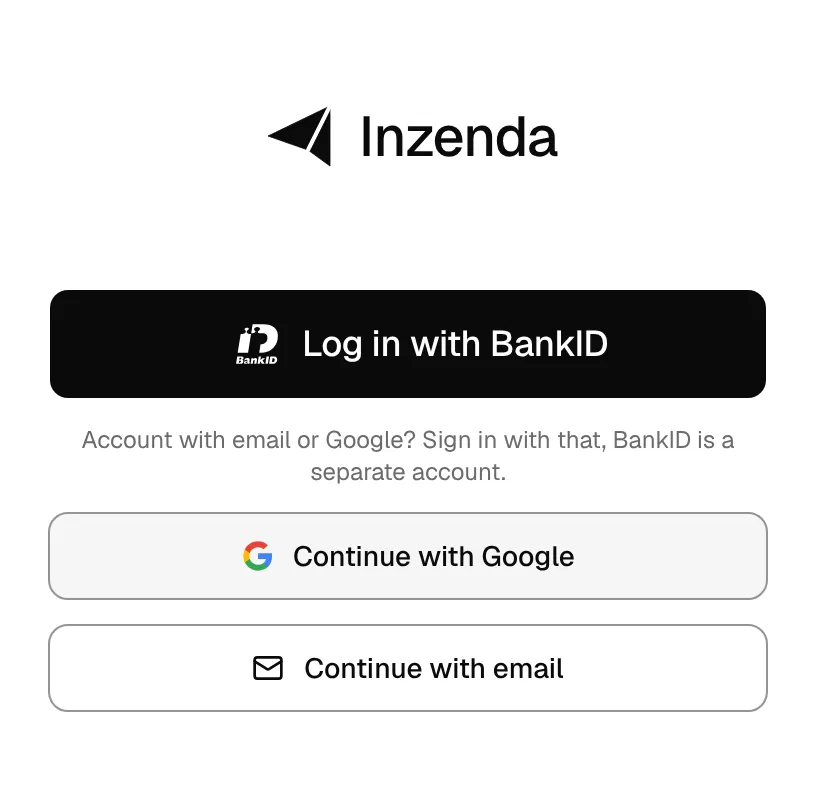
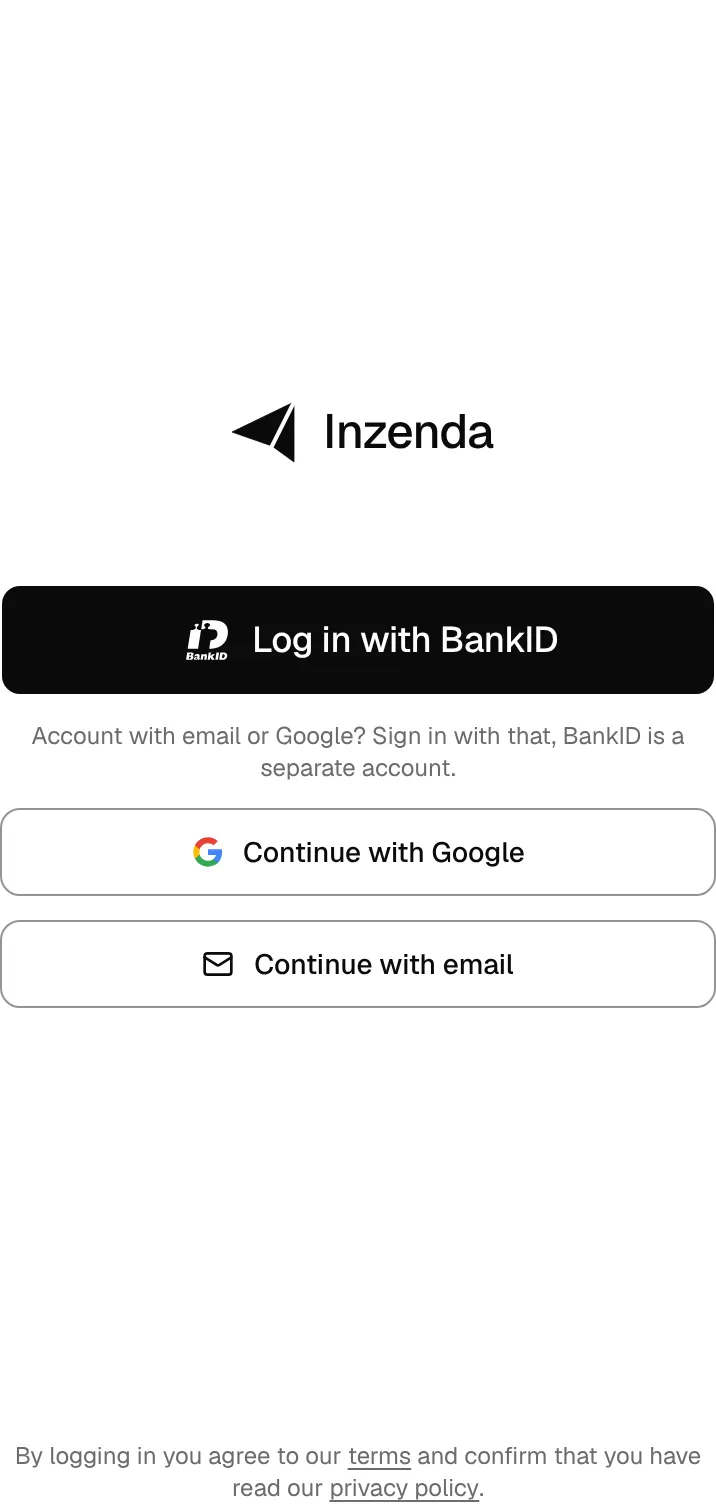
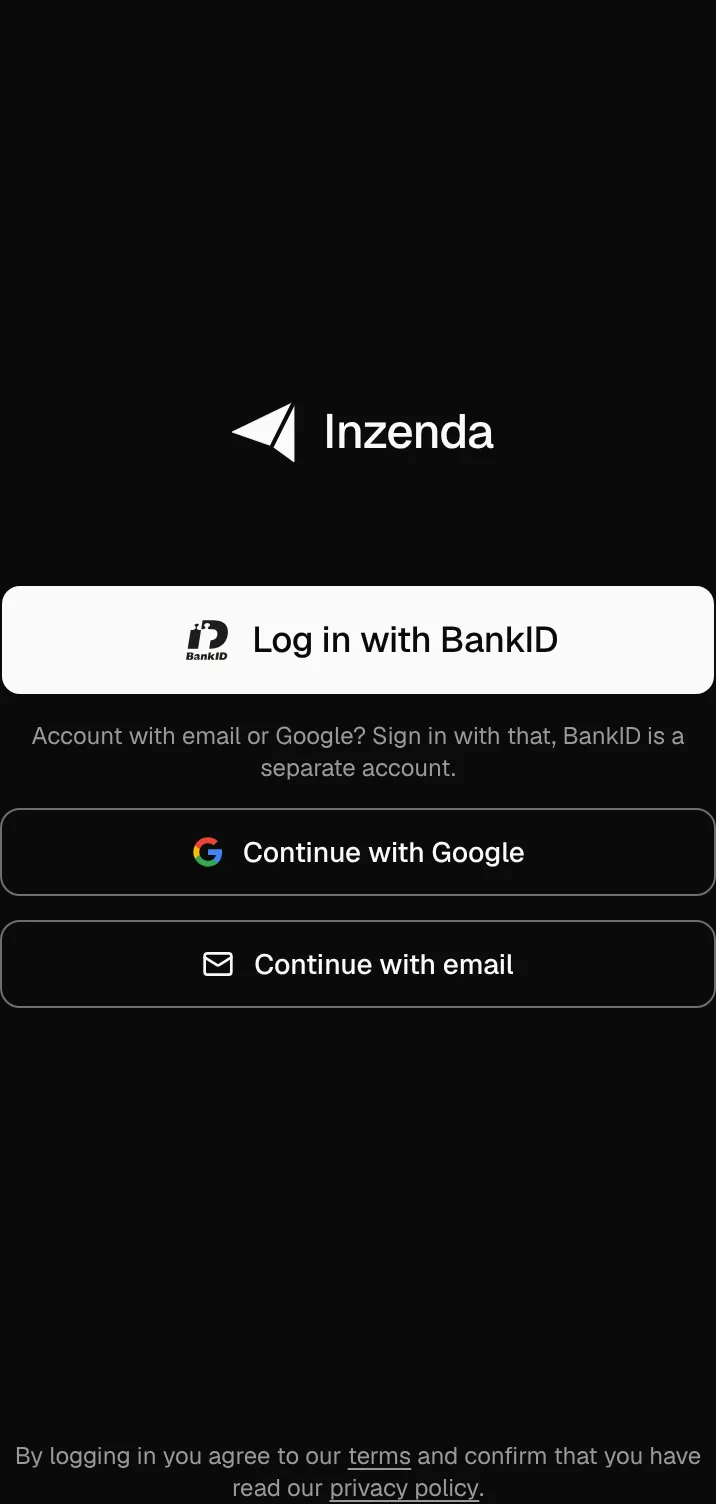
A BankID account is an account of its own. If you already have an account with email or Google, BankID becomes a new, empty account, and your companies stay on the old one. In that case, sign in as before. A BankID account has no password, no Google sign-in and no passkeys.
With email or Google
- Select Log in and then Other ways to sign in.
- Select Continue with Google and choose your Google account. Done.
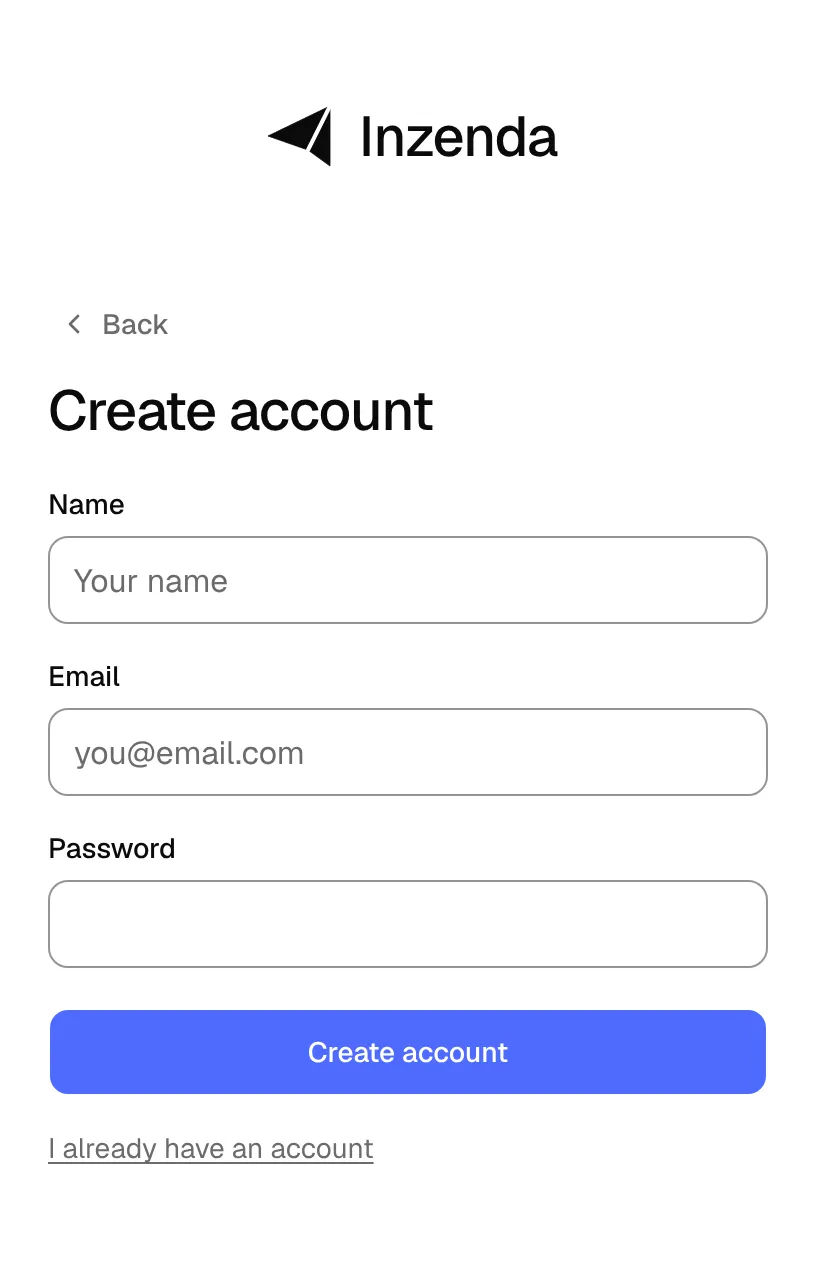
- Or select Continue with email. If you are new, select Create account with email.
- Enter your name, email and a password of at least eight characters. Select Create account.
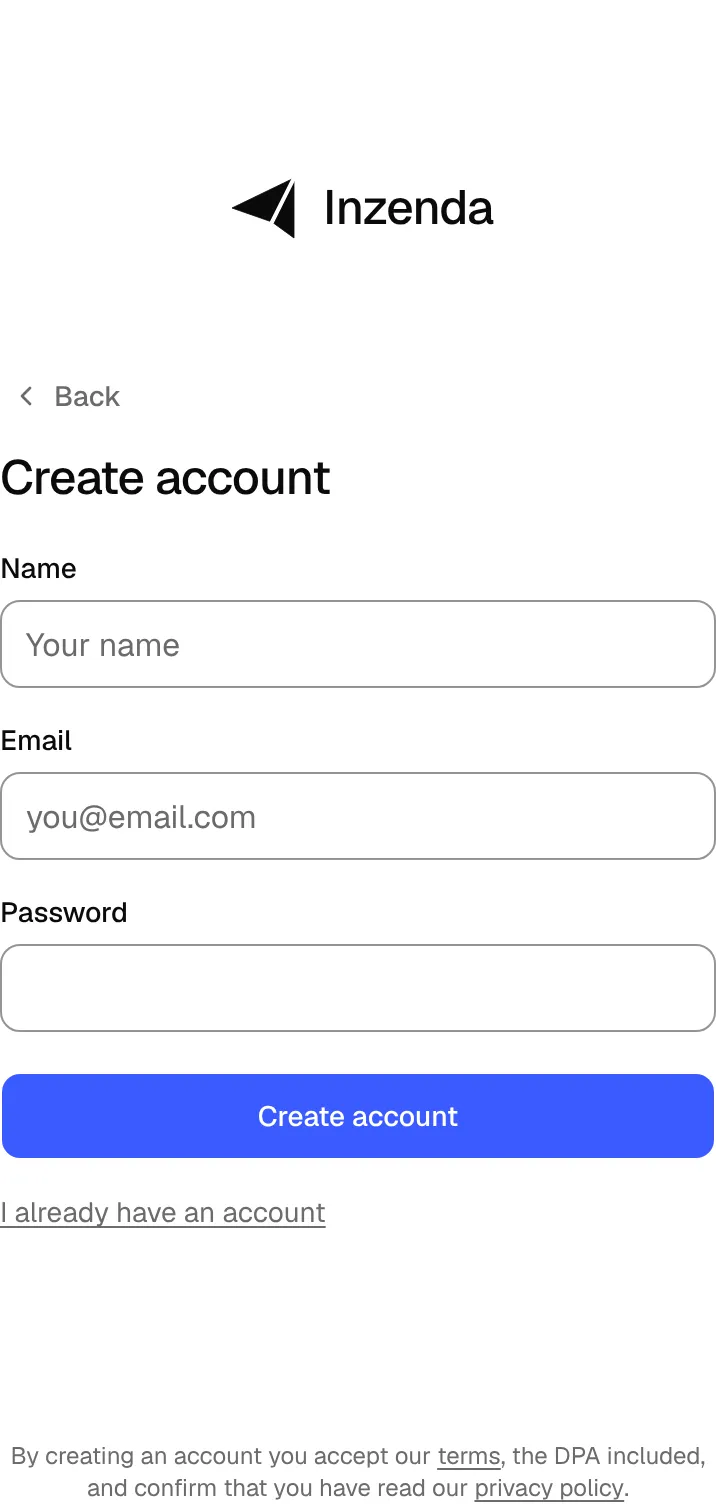
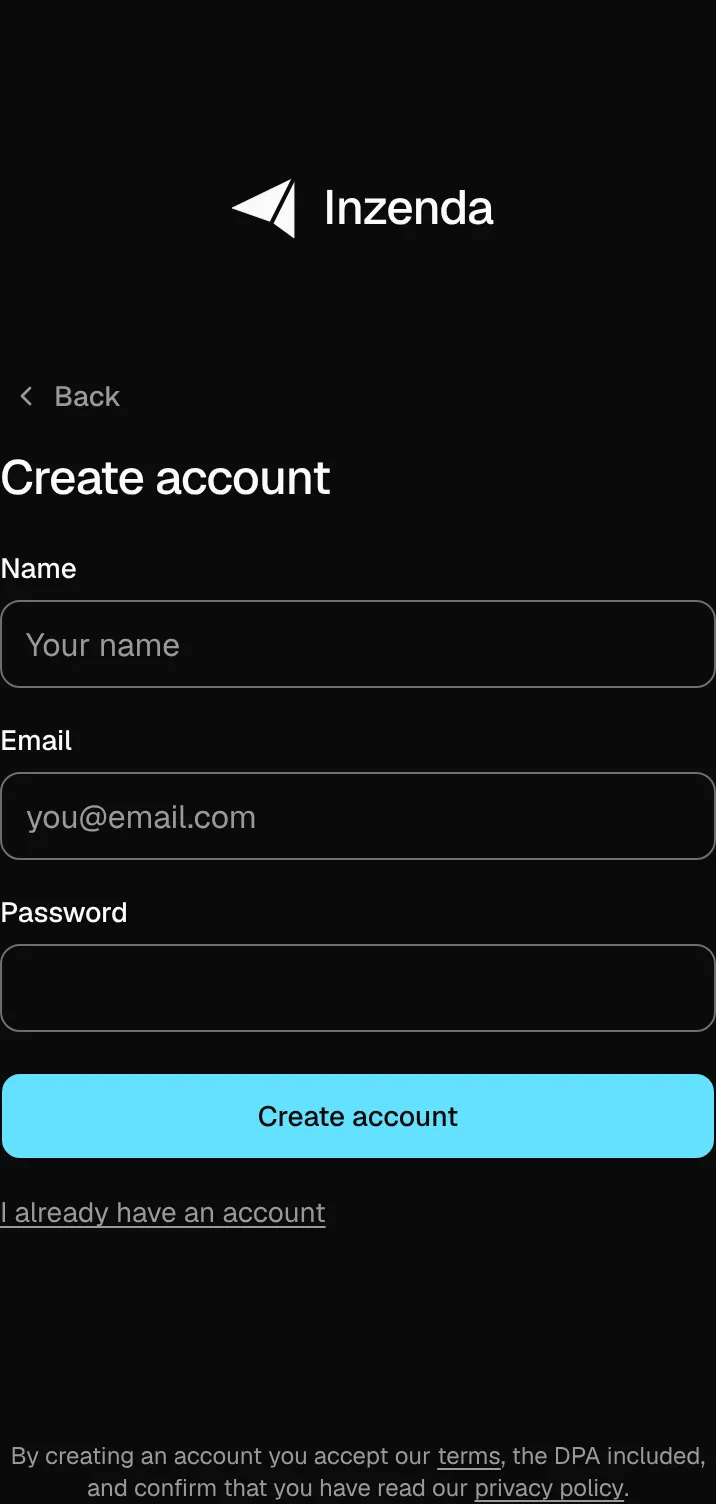
If you have turned on two-step verification, Inzenda asks for the code after the password. If you have added a passkey, you can select Use passkey instead. You add passkeys under Passkeys on the My account page, see two-step verification and passkeys.
Forgot your password
- Select Log in, Other ways to sign in and Continue with email.
- Select Forgot password?, enter your email and select Reset password.
- Open the link in the email. Under Choose a new password, enter a new password and select Save.
- Log in with the new password.
A new password signs you out on every device and disconnects every assistant. Sign in again where you need to.
BankID on a computer
BankID shows a QR code that you scan with the BankID app. If BankID is on the computer, select BankID on this computer.
If something goes wrong
The e-mail or password is wrong.
: check the address and the password, or choose Forgot password?.Too many attempts. Wait a while or choose “Forgot password?”.
: wait a while or reset the password.This address already has an account. Log in with email or Google, or enter another.
: the address belongs to an account with email or Google. Sign in with that, or enter another address for the BankID account.Log in with email or BankID.
: the address belongs to a BankID account. Sign in with BankID.You are logged in as anna@example.se. Log out first.
: you are already signed in to another account. Log out first.That took too long. Try again.
: start the sign-in again and open the BankID app right away.The link has expired. Request a new one.
: the link is valid for a short while. Start again from Forgot password?.Registration failed
: the address may already have an account. Sign in instead, or choose Forgot password?.
Getting startedCan't find the answer? Write to support@inzenda.se